

Overview
Ratings and reviews have a big say in how your app ranks and whether people download it. But asking for them or showing the prompt at the wrong time can annoy users, and get you the opposite of what you wanted. This guide covers strategies and best practices you can use to ask users for a rating/review without sounding pushy/needy.
Things we’ll cover in this guide:
- App Store and Play Store restrictions/limits on how many times you can show the prompt.
- Moments in your app where asking for a rating works best.
- What not to do/avoid when asking for a rating.
- How long it takes for user submitted ratings/reviews to show up, and how they’re monitored.
- Packages you can use to ask for a rating/review in Android, Swift, and Flutter.
Apple & Play Store restrictions around asking for review
App Store
3 day limit over 365 days
Apple’s review/rating system limits the display of the prompt to 3 occurrences/invocations per app within a 365-day period. If you try to invoke the prompt more than 3 times within this period, the prompt will not show up. So, make sure you ask for rating when it counts the most and not at random times.
Source: Apple - Asking for ratings and reviews
Do not farm ratings/reviews
Apple has strong restrictions against apps farming app ratings. If you do, and Apple suspects that you’ve farmed your ratings, then that could lead to removal of your app, or worse, termination of your Apple Developer account.
Src: App Guidelines sections 5.6.1 and 5.6.3.
Play Store
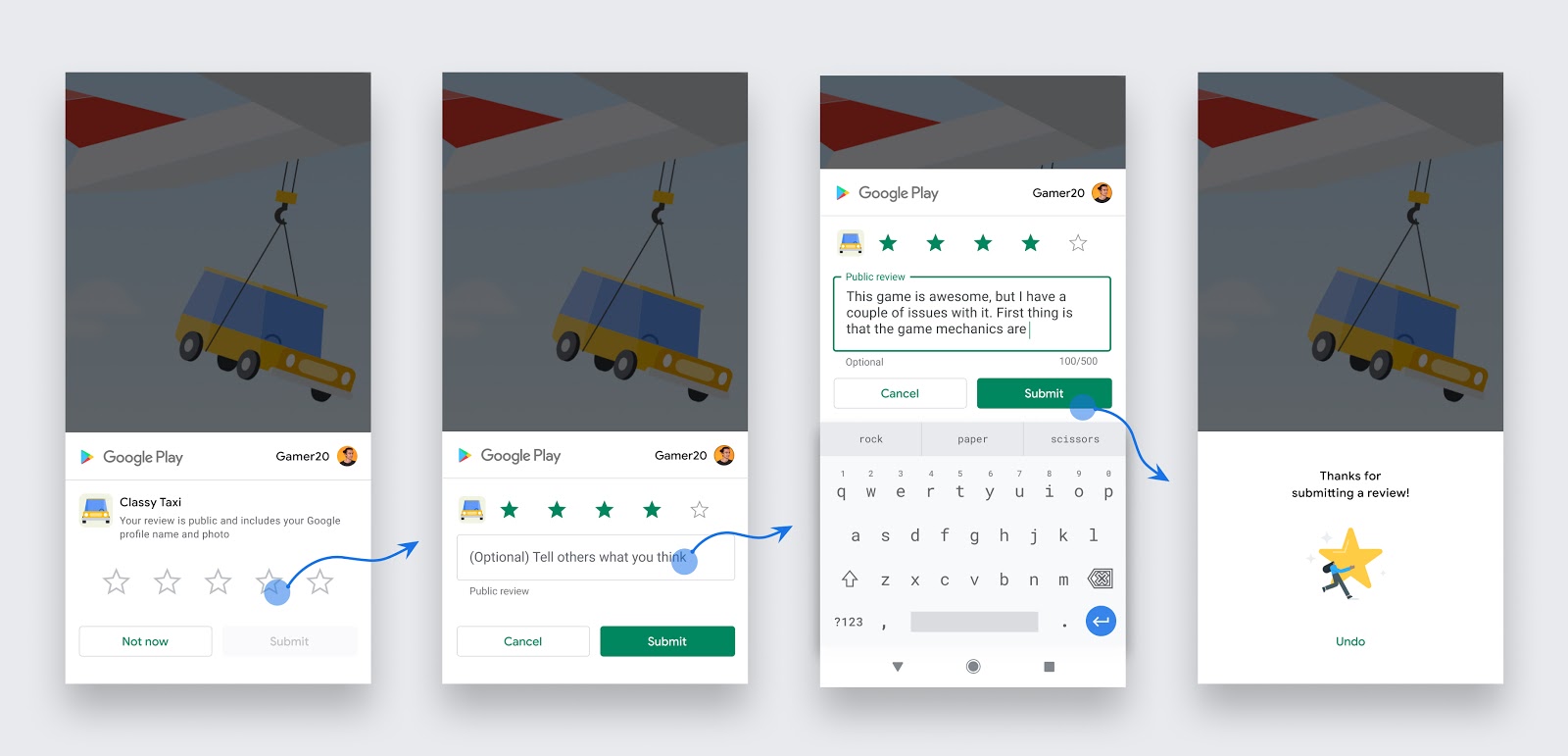
Time-based quota on the prompt
Google Play doesn’t publish a fixed number like Apple does. Instead, it enforces a time-bound quota on how often a user can be shown the review dialog. If you call launchReviewFlow more than once in a short period (for example, less than a month), the dialog might not show up at all. Google can also change this quota without any notice, so don’t build your logic around a specific number.
Because of this, don’t put a “Rate this app” button in your app that triggers the in-app review API. If user has already hit their quota, they’ll tap the button and nothing will happen. Instead, on tap, send users to your Play Store listing.
Src: Google Play In-App Reviews API – Quotas.
Settings
Nothing happens. Quota used up.
Settings

Rate this app
Tell others what you think
Don’t tamper with the prompt or ask questions before it
Google is strict about how the review card looks and what comes before it:
- Show the card as-is. Don’t change its size, opacity, shape, or anything else about its design.
- Don’t add any overlay on top of or around the card. Don’t remove it programmatically either, it goes away when the user acts on it.
- Don’t ask user any question before or while showing the card. This includes opinion questions like “Do you like the app?” and predictive ones like “Would you rate this app 5 stars?”.
Src: Google Play In-App Reviews API – When to request and Design guidelines.
Do not farm ratings/reviews
Same as Apple, Google Play’s policies don’t allow manipulating ratings and reviews. Offering users rewards in exchange for ratings falls under this. Google also automatically detects suspicious rating/review activity, and if it finds any, it can hold back all new ratings and reviews of your app while it investigates, and remove the ones it finds abusive.
Src: Google Play’s User Ratings, Reviews, and Installs policy and Play Console Help – Ratings delay and pauses.
What to do
1. Show your a decoy prompt first, then the actual rating popup
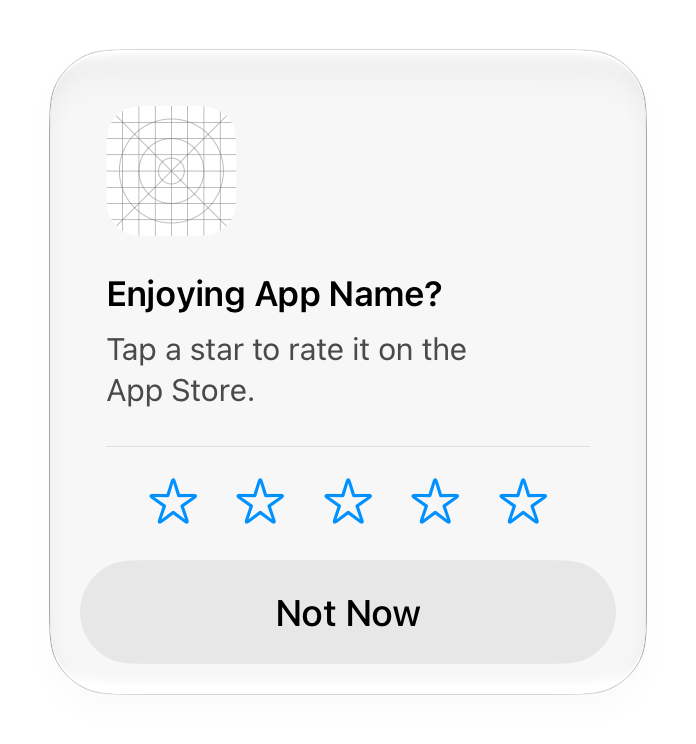
Don’t call the system rating popup straight away. Instead, first show a decoy prompt that matches your app’s design, with your own messaging and two actions: Leave a rating and Not now.
- If user taps Leave a rating, then trigger the actual rating popup.
- If user taps Not now, don’t trigger the popup at all. Close your prompt and let the user get back to the app.
Walk complete
20 min · 1.4 km
DoneRate Your App
Ratings help other people find it.
Leave a rating Not nowEnjoying Your App?
Tap a star to rate it on the App Store.
Walk complete
20 min · 1.4 km
DoneRate Your App
Ratings help other people find it.
Leave a rating Not nowThis gives the user a choice to leave a rating, without you depleting your limits/quota for showing the rating popup on users who were going to dismiss it anyway. Only users who say yes use up a prompt.
Note:
- Play Store: Google says not to ask users any question before or while showing the review card, including opinion questions like “Do you like the app?”. So keep your messaging a plain statement or invitation, not a question. See In-App Reviews – When to request.
Also, keep it honest. Don’t steer users toward a 5-star rating or offer anything in return, as that falls under the manipulation we covered in the restrictions section.
The moments below are all good places to show this prompt first.
2. At the end of onboarding
If you’ve an app onboarding that demonstrates the app’s functionality to user, gives user a good idea of what your app is about, and how they’ll benefit from it, then showing a rating prompt at the end of onboarding could result in a positive rating from user.
Pick a goal
Start with one. You can add more later.
Log your first walk
Tap to start First walk logged!
You're all set
Your first goal is live.
Get startedEnjoying Your App?
Tap a star to rate it on the App Store.
For this to work, make sure your onboarding lets user use some of the features of your app in certain capacity. If you’re just talking about your features/benefits instead of demonstrating them, then don’t do this. Otherwise, App Store review team may reject your app under the Guideline 5.6.3 - Developer Code of Conduct.
3. After major update
What's new
- Dark mode
- Faster sync
- New home screen widgets
Enjoying the update?
If you’ve just released a major update for your app, and you convey those updates to user through an update dialog/view in your app, you can tuck your rating prompt at the end of that message.
This has a good chance of users leaving a rating after they’ve gone through what you’ve shipped in that update.
4. After user uses a certain feature x amount of times
One strategy that’s guaranteed to work most of the times is showing the rating prompt after user has spent some time using your app. You can track how many times the user has used a certain feature or completed a certain action. Keep a count of the feature use or action taken. And set a count limit after which you’ll show the rating prompt.
Once user hits/passes that count limit, show the rating prompt. If the user does leave a rating, then do nothing. And just show a thank you message. If user doesn’t, reset the count for that feature use or action.
Exports completed
012345 / 5
Counting… Limit reached. Ask now. Not rated. Reset the count.
Enjoying Your App?
Tap a star to rate it on the App Store.
5. After user uses/makes a combination of features/actions
You can also track counts for multiple actions/feature usage, and show the prompt once user has checked off all the boxes in that list. This will make sure that user has used your app to a good extent and is more likely to leave a rating when the prompt is shown.
Used so far
- Added a task
- Set a reminder
- Shared a list
Not all done yet… All done. Ask now.
Enjoying Your App?
Tap a star to rate it on the App Store.
6. After user makes a purchase
If your app offers subscriptions, or consumables like lifetime purchase, usage credits, etc, then when user makes a purchase, show the prompt after the purchase is successful. If user has made a purchase, then that means user sees the value your app offers, and showing prompt after purchase, will likely result in a good rating and a review.
7. After user shares something
Does your app have social features? If you allow users to share any user generated content from the app like their progress in habit/calorie tracking app or their milestones/goals on completion, then show the prompt on a successful share action.
8. When user reaches a certain goal in apps like habit/calorie tracker
You can also show the review prompt when user hits certain personal goals/milestones within your app. Like continuing a habit streak for a week or a month. This is a great opportunity because user has already accomplished something with your app, and is quite happy using it. Thus, will have higher chance of rating the app.
What not to do/avoid
1. Do not ask for review if user has not experienced your app yet during onboarding
If your onboarding only tells users about your features and doesn’t let them try any of it, then they have nothing to rate yet. Whatever they rate would be based on how your sign up screens look, not on your app. You’ll also burn one of your limited prompts (3 per 365 days on iOS) on a user who isn’t likely to give you a good rating. Ask only when your onboarding lets them use the app in some capacity, like we covered above.
2. Do not ask for review if user hasn’t spent much time using the app or performing certain critical actions
Both App Store and Play Store mention to ask only after user has experienced enough of your app to give useful feedback. A user who’s just a few minutes in hasn’t reached the part of your app that makes it valuable, so they have nothing to say about it, good or bad. You’re better off waiting till they’ve used a feature a few times, or completed the actions that matter most in your app.
3. On app launch
User opens your app to get something done. Putting a prompt right in front of them as the first thing they see is a speed bump, not a good moment. Apple recommends asking when users are most likely to be satisfied, like after they’ve completed an action, level, or task.
4. Do not ask for review more than once in a short interval
Apple shows the prompt at most 3 times in a 365-day period, and Google Play has its own time-bound quota that can stop the dialog from showing if you call it again within a short time (less than a month for example). So if you ask too often, you’ll run out of chances, or the prompt just won’t show. Even when it does show, a user who has just dismissed it won’t be happy to see it again the next day. Leave a good gap between asks, and spend your prompts on the moments listed above.
5. Interrupting a user workflow
Don’t show the prompt while user is in the middle of something. Like typing, filling a form, going through a checkout, or playing a level. Apple’s guidelines specifically say to make sure not to interrupt user’s activity. Wait for the natural pause, like when the task is completed, the level ends, or the purchase is done. That’s when user is relaxed enough to give you a rating, and a rating given in annoyance is usually a low one.
Read more about Apple’s best practices for asking for ratings and reviews here.
How long does it take for reviews/ratings to show up?
Rating submitted Processing… Live on your listing
Google Play
About 24 hours
Rating submitted Held back. You see it in Play Console, others don't yet. Public
App Store
After a user rates your app or leaves a review, it may take up to 3-4 days or more for them to appear under your app store listing in the specific countries. And during the early few days after leaving the rating/review, the user should’ve been actively using the app for it to count as a valid rating/review.
Does Apple monitor app reviews?

According to App Store info, Apple monitors all reviews left by users. If the review doesn’t meet Apple’s guidelines and rules for a valid review, or Apple suspects them as fraud or spam, then those reviews may be removed by Apple.
Read more in detail about what counts as a valid App Store review here.
Play Store
Google Play doesn’t publish new reviews right away. New ratings and reviews are generally held back for around 24 hours before they’re public, and new ratings don’t immediately change your published rating either. This delay is there so Google can automatically detect suspicious rating/review activity. During this time you can still see and reply to the new reviews in Play Console, even though they’re not public yet.
If Google detects suspicious activity in that window, all new ratings and reviews for your app are held back while they investigates. Once done, they unpause or removes the ratings and reviews they found to be abusive. Play Console shows you a notification on the Ratings and Reviews pages if your app is paused, and whether each review is public or not.
Src: Play Console Help – View and analyze your app’s ratings and reviews.
A few more things to know about:
- The rating shown on Google Play is weighted towards your more recent ratings. So the updates you ship will reflect in it over time.
- Ratings don’t reset when you publish a new version of your app.
- Users can only rate an app once, but they can update or delete their rating/review whenever they want.
Src: Play Console Help and Google Play In-App Reviews API.
Monitoring ratings/reviews
Getting ratings and reviews is half the job. The other half is reading them, replying to them, and fixing what users are telling you.
Keeps crashing when I export a photo. Fixed in the latest update. Works great now!
Developer response
Sorry about that. We've fixed the export crash in 1.5. Please update and let us know how it goes.
User gets notified and can update their review.
App Store Connect
You can find ratings and reviews of your app in the Ratings and Reviews section in App Store Connect. Users with the Admin or Customer Support role can view, sort, and respond to reviews.
- Respond to reviews. You can respond to any review, regardless of when it was written. User gets notified and can update their review. You can edit your response anytime, and only the latest version is shown.
- Prioritize. If you can’t reply to everything, start with the lowest star ratings and the ones that mention technical issues in your current version.
- Close the loop. When you ship a fix for something mentioned in older reviews, say so in your release notes and reply to those reviews. This can bring back users who were unhappy before.
- Reply after big releases. Right after a major release is when users are most likely to share feedback, so reply quickly then. You can set up email alerts in App Store Connect to know when a user edits a review you’ve replied to.
- Report a concern. For reviews with offensive content or spam, use Report a Concern under the review instead of replying. The reviewer isn’t notified about it. Note that you can’t remove reviews yourself, only Apple can.
- Reset summary rating, sparingly. You can reset your summary rating when you release a new version. But having few ratings may discourage people from downloading, and written reviews aren’t reset anyway.
Keep your replies short, respectful, and specific to the feedback. Don’t add personal information, marketing, or spam in them. Billing or download issues should be directed to Apple Support.
Google Play Console
Google Play Console has these under Ratings and reviews in the sidebar:
- Ratings. Shows your Google Play rating, lifetime average, and total ratings, along with how you compare with peers. You can break down ratings by country, language, app version, Android version, device, and more. This is useful to find out if a particular version or device is pulling your rating down. You can also download the data as CSV.
- Reviews. Lets you filter reviews by date, star rating, language, app version, device, and reply state. You can also sort by rating, date, or helpfulness, and search for specific words.
- Reviews analysis. Shows top positive and critical themes (for English reviews), and benchmarks of how topics like stability, speed, and usability affect your rating compared to apps in your category. It also shows how users update their ratings after you reply to them.
- Testing feedback. Beta feedback from your testers. It’s visible only to you, not on Google Play.
You can write one public reply per review and edit it anytime. User gets a push notification and an email when you reply. Keep replies clear, relevant, and polite, and don’t use them to promote anything. You can turn on email notifications to know when new reviews come in or existing ones get updated. If you have a lot of reviews, the Reply to Reviews API lets you pull and reply to reviews from your own tools or services like Zendesk.
Src: Play Console Help – View and analyze your app’s ratings and reviews and the Play reply policy.
Packages to use for asking for review in Android/Swift/Flutter
Whichever platform you’re on, use the official API for it. They handle the prompt UI, the quotas, and the review submission for you. Also keep in mind that none of them tell you if the prompt was shown or if the user left a rating, so your own logic should decide when to call, and treat the call as fire-and-forget.
Swift (iOS/macOS)
Use StoreKit. In SwiftUI, get the requestReview action from the environment (iOS 16+) and call it at one of the right moments:
import StoreKit
import SwiftUI

struct GoalCompletedView: View {
    @Environment(\.requestReview) private var requestReview

    var body: some View {
        Text("Goal completed!")
            .task {
                // Your own check: streak hit, purchase done, etc.
                if ReviewPromptPolicy.shouldAsk() {
                    requestReview()
                }
            }
    }
}
In UIKit, pass in the window scene:
import StoreKit

if let scene = view.window?.windowScene {
    AppStore.requestReview(in: scene)
}
On older iOS versions you can use SKStoreReviewController.requestReview(in:) instead.
Few things to keep in mind:
- In development, the prompt always shows so you can test the UI. It does nothing in TestFlight builds.
- In Production, if user hasn’t rated your app on that device, it shows up to 3 times in 365 days. If they have, it shows only for a new app version and after 365 days since their last review.
Src: StoreKit – RequestReviewAction. It also covers adding a persistent “Rate this app” link to your product page using ?action=write-review, which is what you should use for a button instead of the prompt.
Android (Kotlin/Java)
Use the Google Play In-App Review API. It requires Android 5.0 (API 21) or higher with Play Store installed. Add the dependency:
dependencies {
    implementation("com.google.android.play:review:2.0.2")
    implementation("com.google.android.play:review-ktx:2.0.2")
}
Then request the review flow and launch it:
val manager = ReviewManagerFactory.create(context)

manager.requestReviewFlow().addOnCompleteListener { request ->
    if (request.isSuccessful) {
        val reviewInfo = request.result
        manager.launchReviewFlow(activity, reviewInfo)
            .addOnCompleteListener {
                // Flow finished. It doesn't tell if the user reviewed or if
                // the dialog was even shown. Continue your normal app flow.
            }
    } else {
        // Log the error, but don't show anything to the user.
    }
}
A few things to keep in mind:
ReviewInfois only valid for a limited time. You can request it ahead of time, but only once you’re sure you’ll show the prompt.- If something fails, don’t tell user about it or change your app flow. Just carry on.
- To test, your app needs to be available at least on the internal testing track, and the account must have the app in its Play Store library.
Src: Integrate in-app reviews (Kotlin or Java) and Test in-app reviews.
Flutter
Use the in_app_review package. It uses the In-App Review API on Android and requestReview on iOS and macOS:
import 'package:in_app_review/in_app_review.dart';

final InAppReview inAppReview = InAppReview.instance;

if (await inAppReview.isAvailable()) {
  inAppReview.requestReview();
}
For a permanent “Rate this app” button in settings, use openStoreListing() instead. It opens the store page and isn’t restricted by any quota:
inAppReview.openStoreListing(appStoreId: 'YOUR_APPLE_ID');appStoreId is only needed on iOS and macOS, and you can find it in App Store Connect under General > App Information > Apple ID.
Src: in_app_review on pub.dev.
Conclusion
That’s most of what you need to know to implement a good rating prompt workflow for your apps. Make sure to stick to these guidelines and you’ll be good to go.