 Download for Mac
 Download for Windows
 Download for Linux
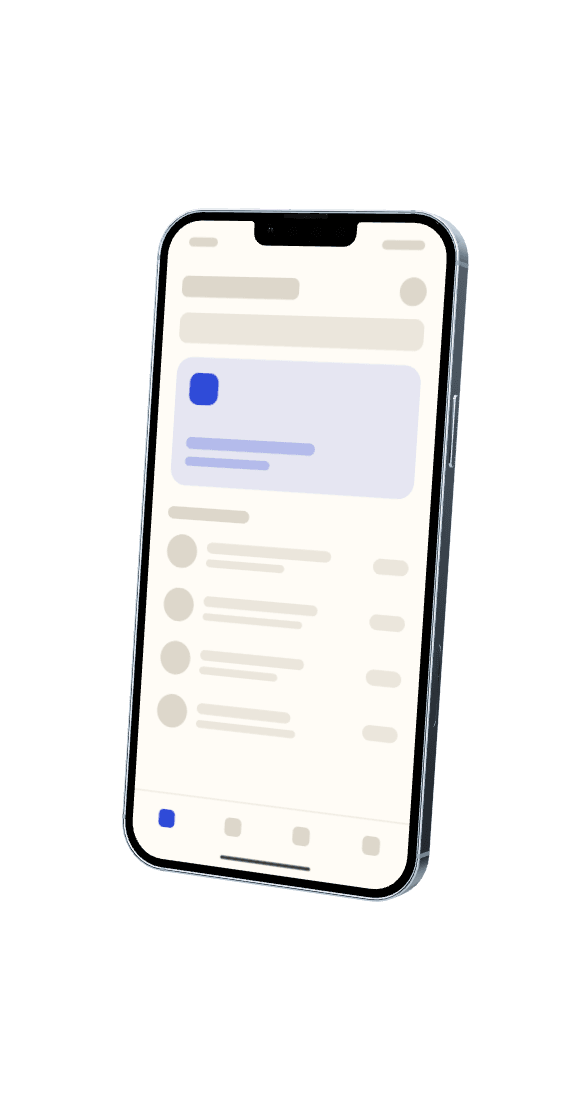
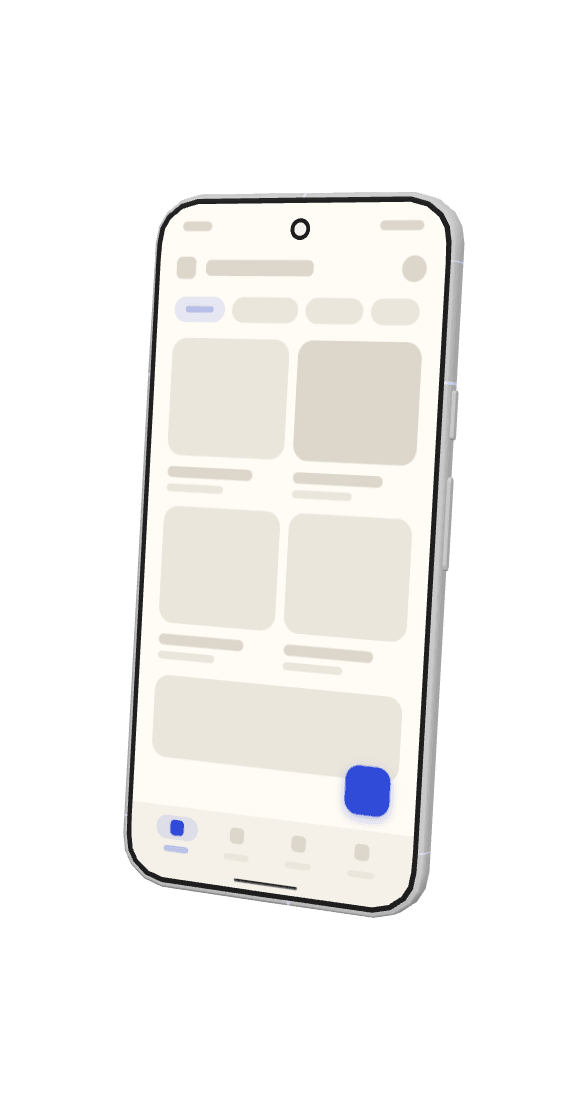
Real 3D device frames
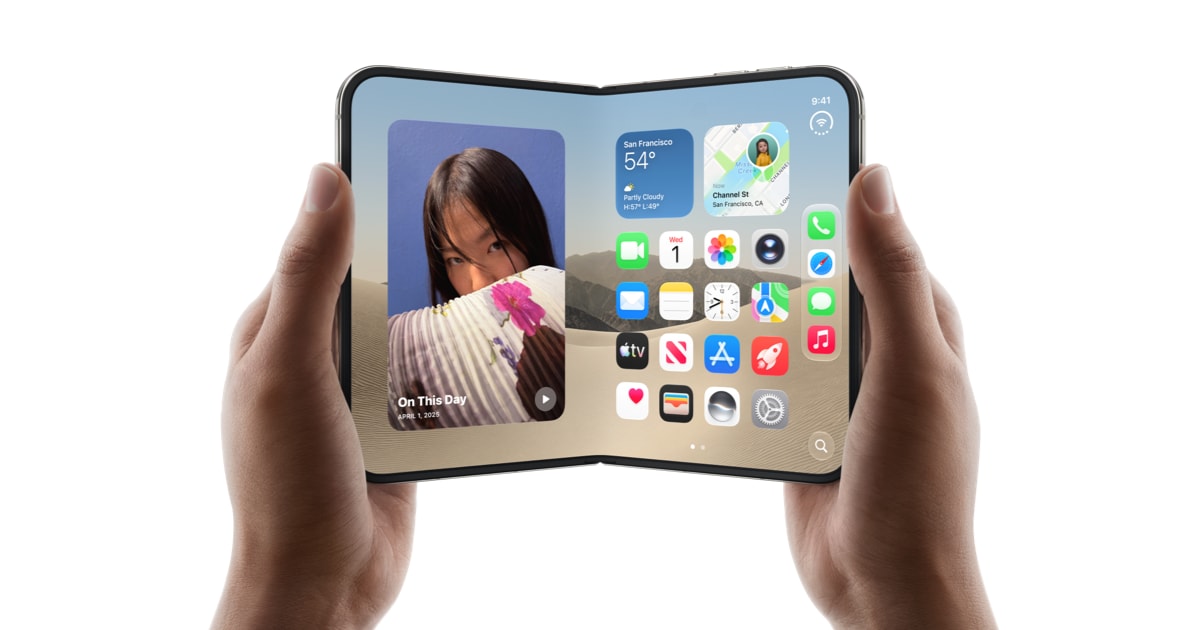
iPhone, iPhone DUO, iPad, Android and Desktop.

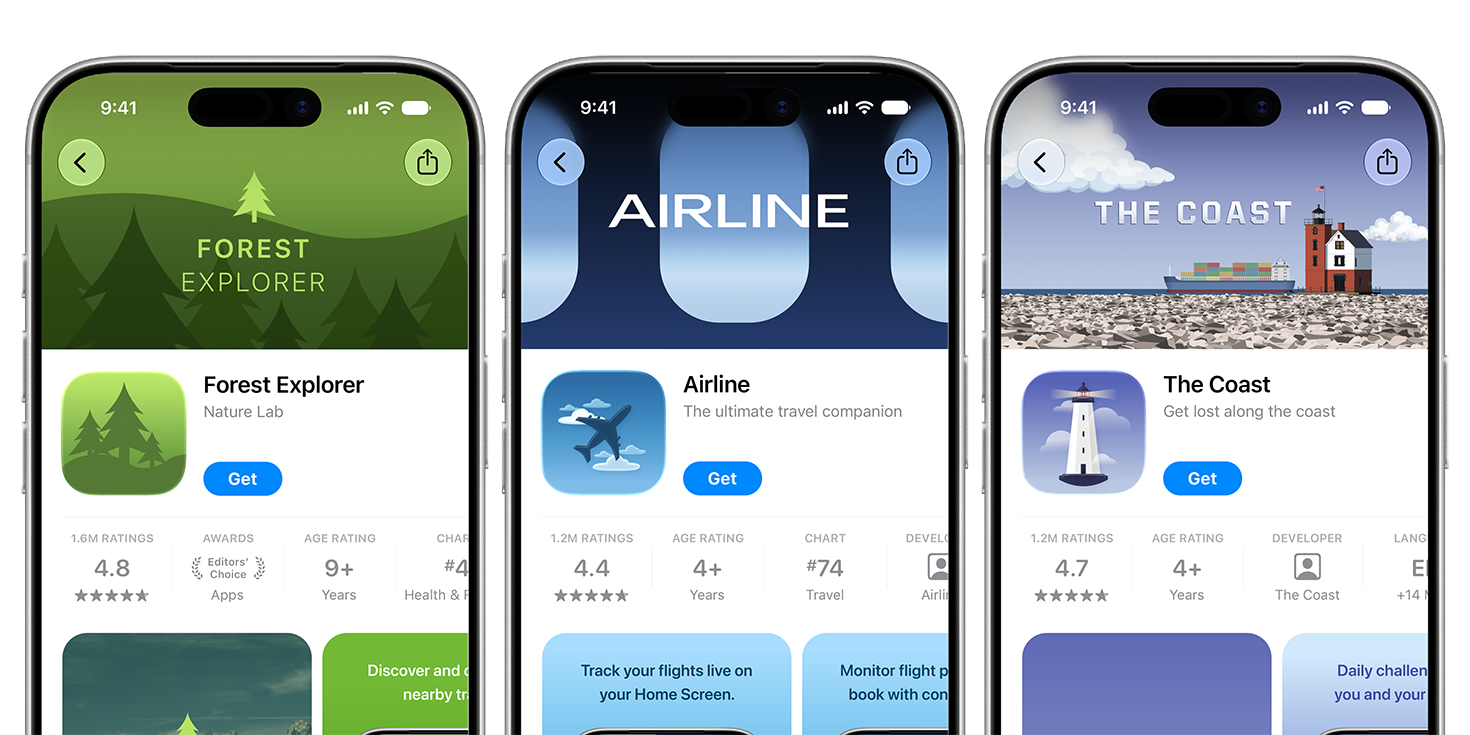
Don't waste hours creating iPad app store screenshots! Let us handle the hard and tedious parts. You focus on what matters most: Working on your app.









Used by 100s of developers to speed up their workflow!
iPhone, iPhone DUO, iPad, Android and Desktop.
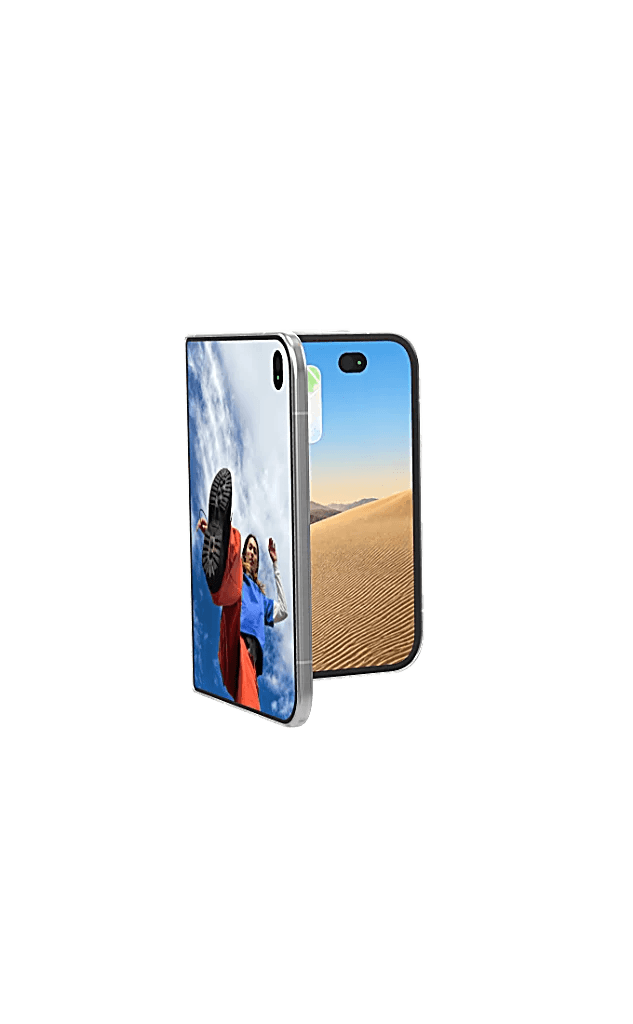
Work with latest device frames.
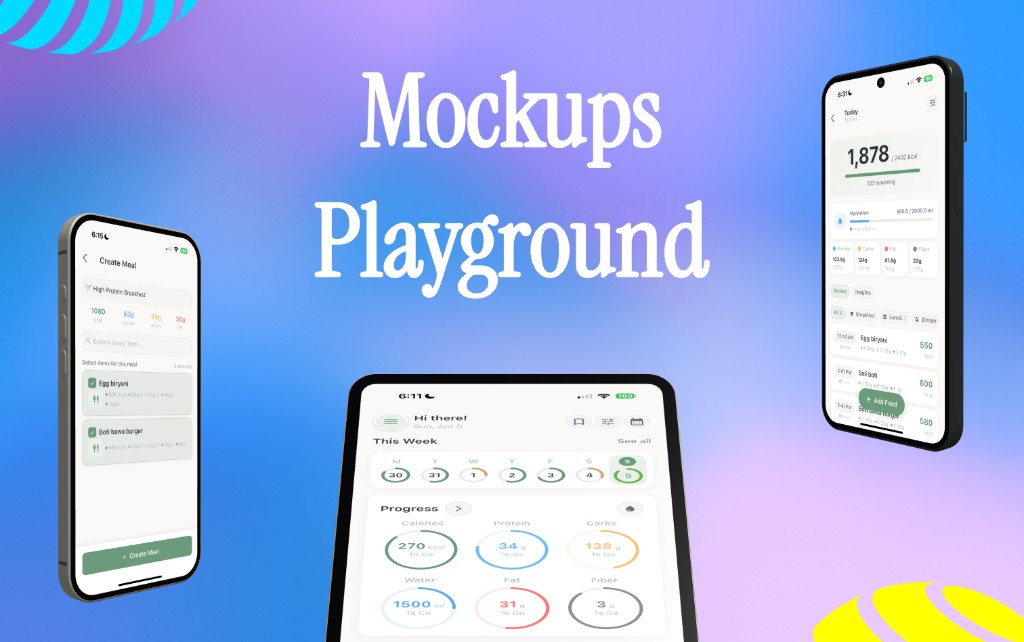
Mockups for sharing and marketing.
Translate screenshot text into every store language, and manage all your locales from one artboard.
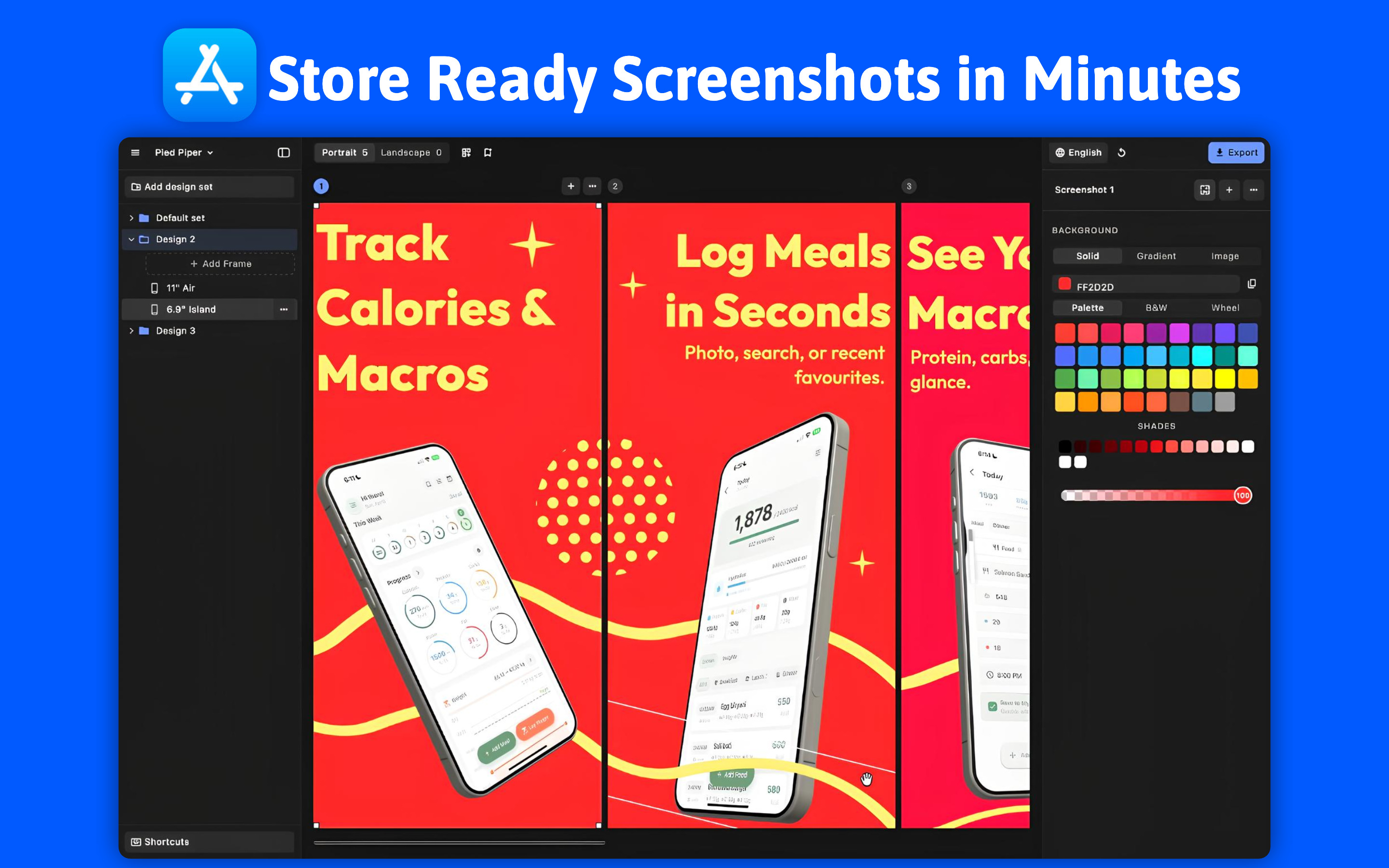
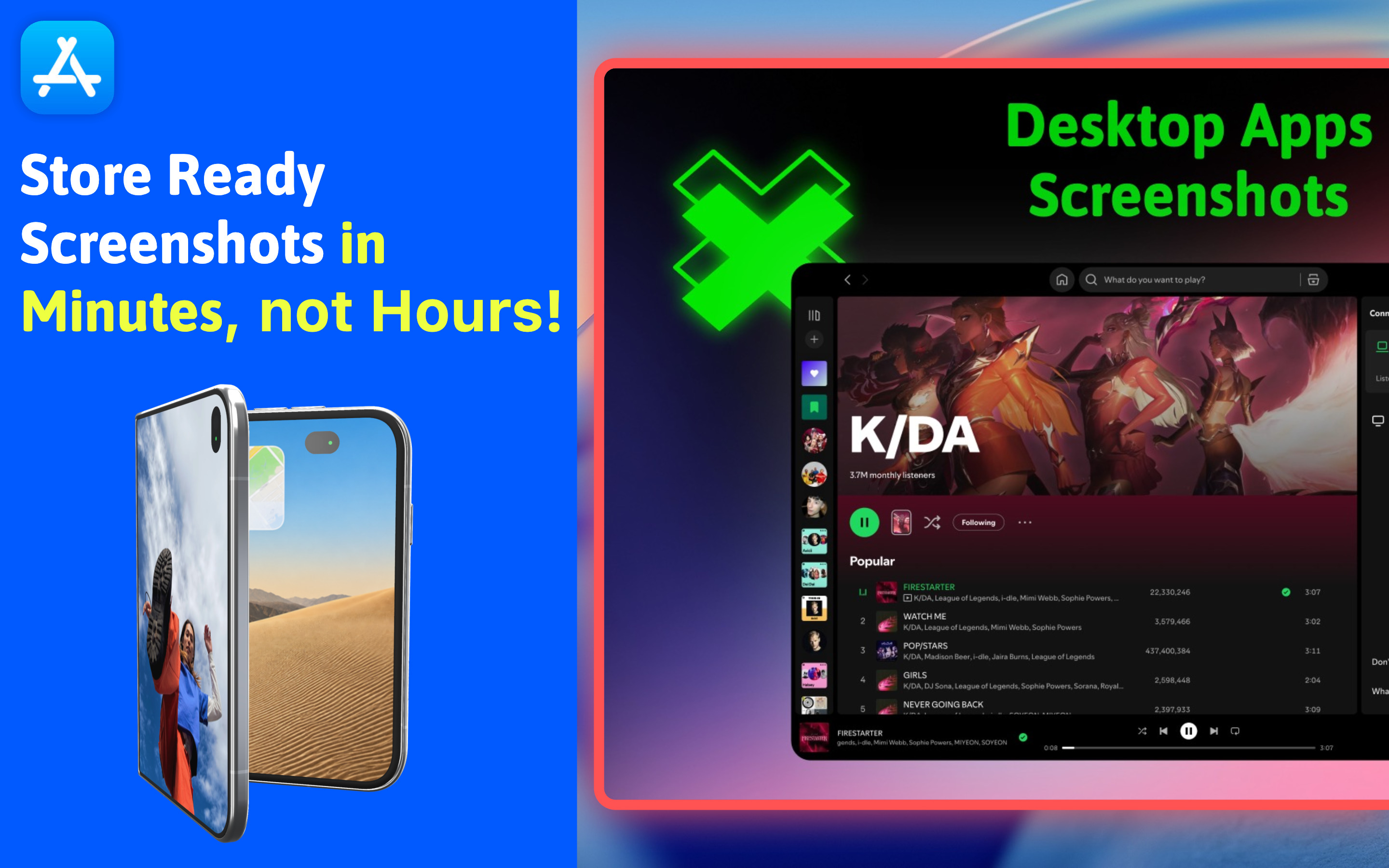
Create store screenshots for your desktop apps.
Publish directly to App Store.
Fonts, gradients, mesh backgrounds, design assets and templates.
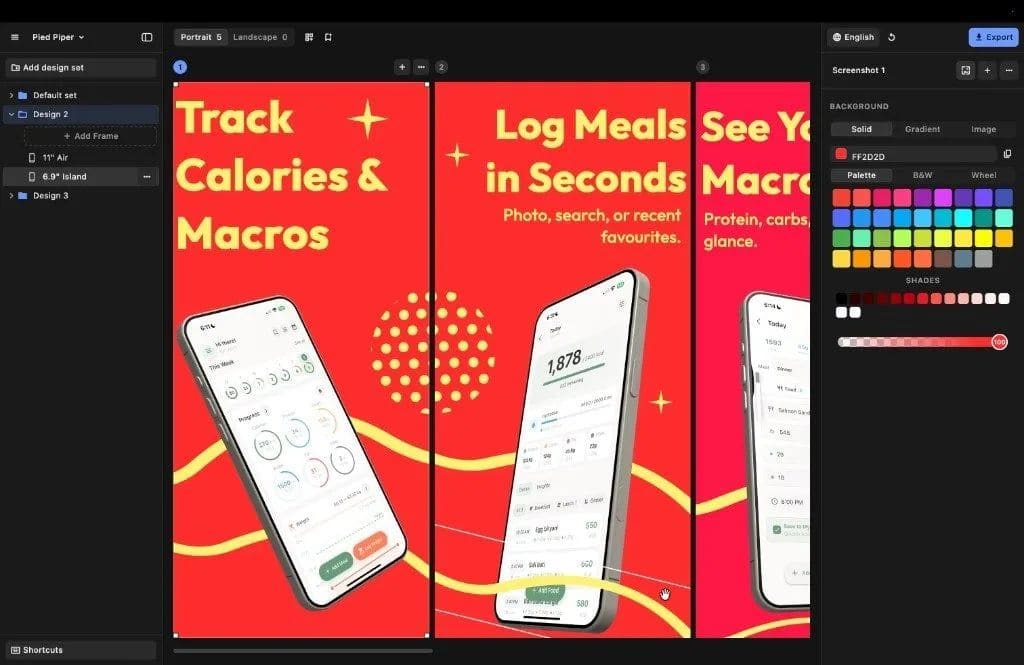
Built natively for macOS, Windows & Linux and fully usable offline.
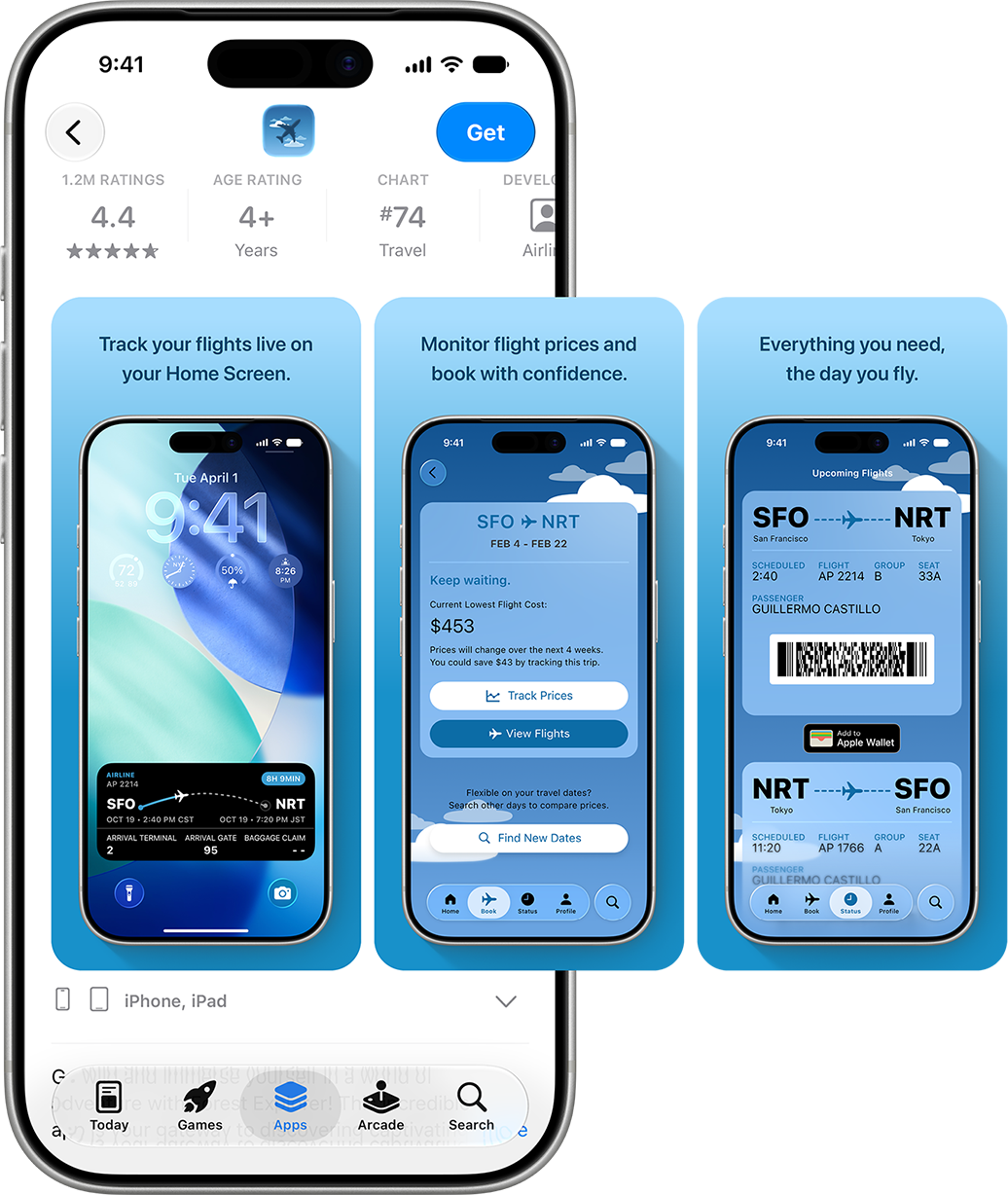
From a blank canvas to store-ready screenshots in minutes.
Pick from professional sets of well designed templates, or create your own custom templates for re-use.
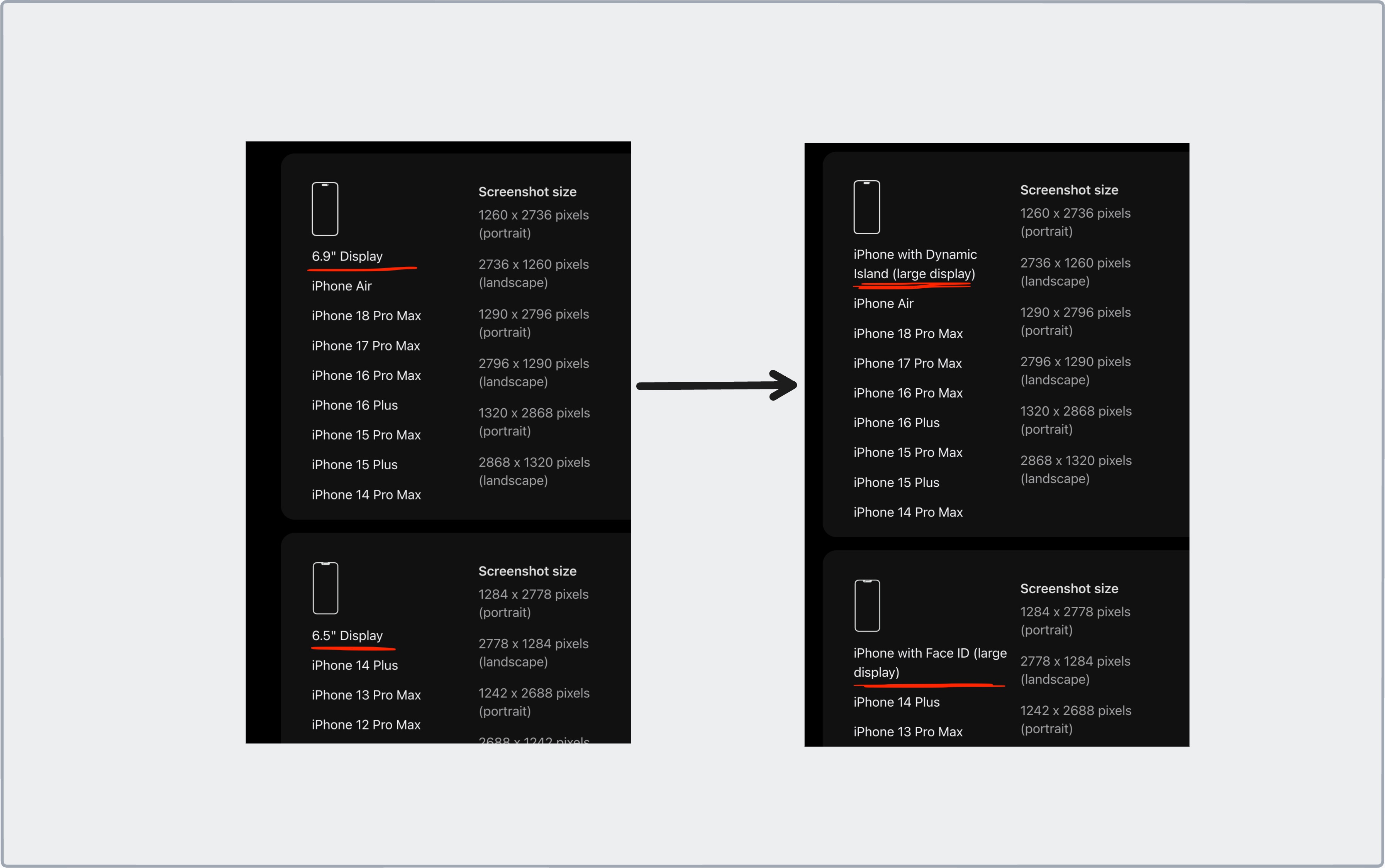
AppShots takes care of guidelines, screenshot sizes and the latest device frames, while you focus on your app.
A flat phone looks like every other listing. Use 3D frames to add depth to your screenshots, and WOW the viewers!
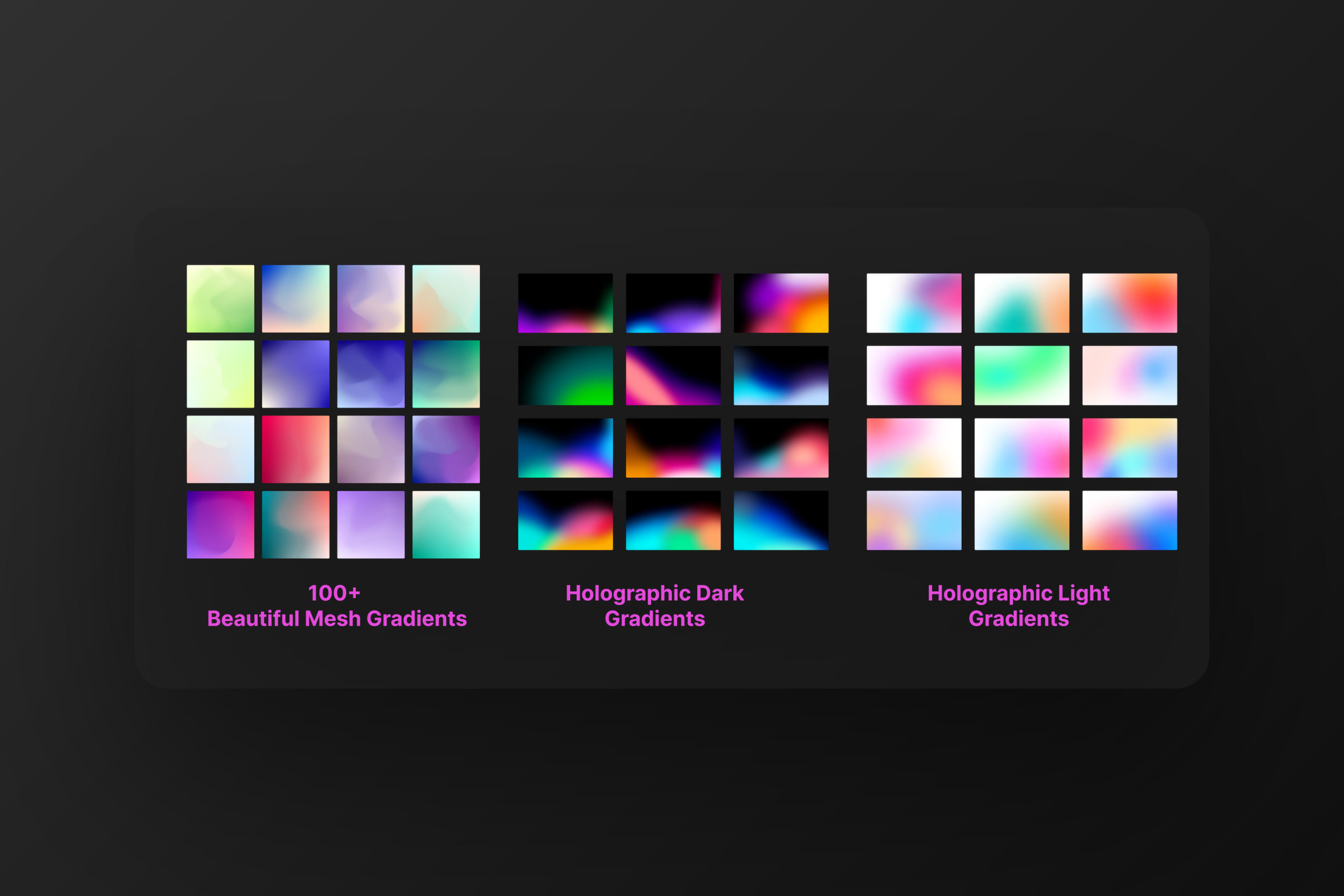
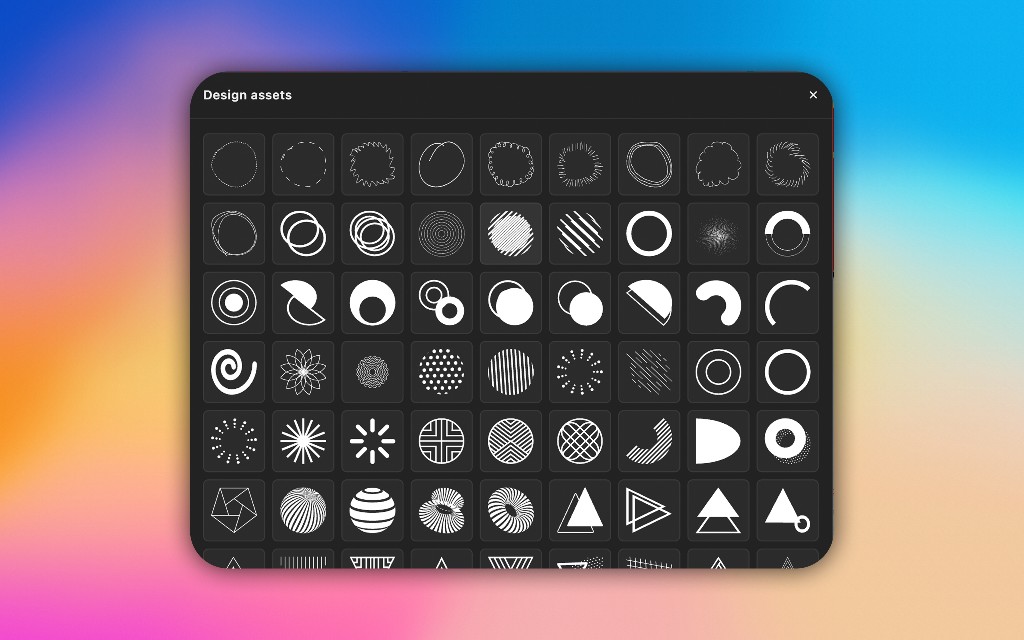
Pick from 100+ mesh gradients, holographic backgrounds, and graphics like rings, waves and spirals, or import your own assets to build a unique brand identity.
Use Mockups Playground to create mockups for sharing and marketing needs.
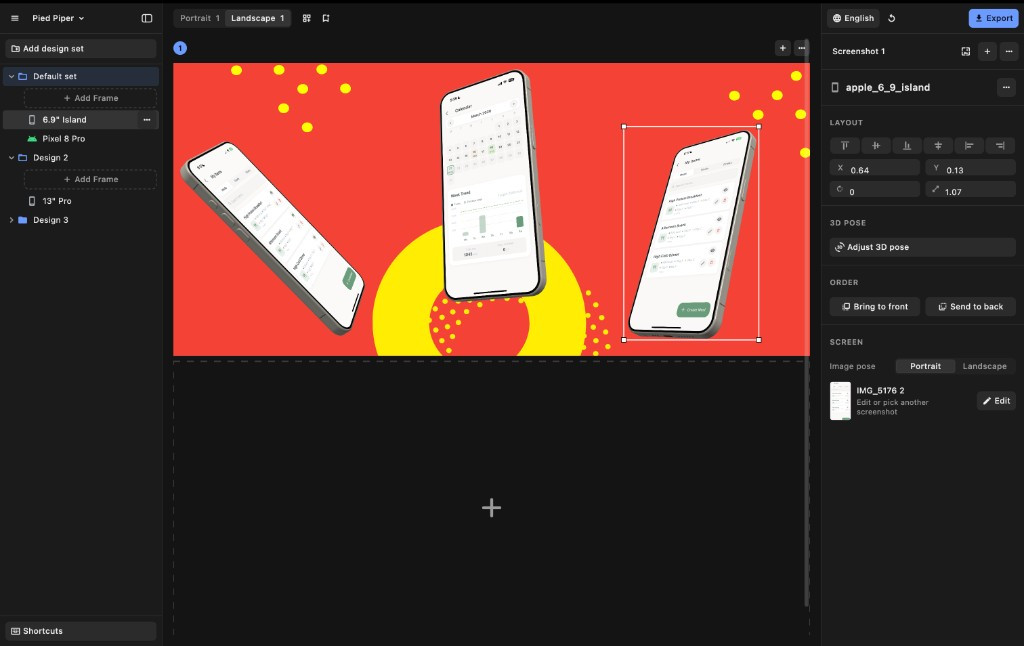
Easily create landscape and portrait screenshots, and copy designs between them.
Screenshots localization made easy. Localize screenshots, and manage multiple locale screenshots easily in one place.
Pick your app, select your locales, update screenshots order if needed and press Publish! It's that simple.
Small touches that save time in the editor.
Lock any element in place so it can't be moved by accident.
Keep each locale's text transformations and styling separate when working with multiple languages.
Select multiple elements together to drag, rotate or perform any actions on them.
Style every word of your headline, right on the screenshot.
Grab any layer, then resize and rotate it, just like in Figma.
Make any parts stand out from others for visual clarity.
Flip the device chassis on or off, and pose the frame however you like.
Everything else that helps you move faster in the editor.
Bring your own images, logos and graphics.
Create store screenshots for your desktop apps.
Design sets to organize your screenshots design experiments with ease.
Save your own layouts and designs to reuse them across every app.
Crop, adjust and polish your imported images without leaving the editor.
A huge font library to match your brand, ready to use.
If your app supports iPadOS, App Store Connect needs at least one 13-inch iPad screenshot before you can submit.
App Store rejects iPad screenshtos that look like streteched out iPhone screenshots. Screenshots composed for the iPad's proportions look deliberate, and that builds trust.
Show what only makes sense on iPad: sidebars, split layouts, multitasking, Apple Pencil workflows and dense dashboards that get cramped on a phone.
Plenty of listings reuse their phone screenshots on iPad. Well-composed iPad screenshots make yours stand out to people browsing on a tablet.
Tablet visuals need real composition. AppShots pairs fast starting points with full layout control, so iPad screenshots look intentional, not stretched.
| Criteria | Manual tools | AI-generated |  AppShots |
|---|---|---|---|
| App Store Review | Acceptable but knowing specs takes time. | App Store has started rejecting ai generated screenshots. | Screenshots follow store guidelines. |
| Tablet layout quality | Total control, but you build every layout from a blank artboard. | Quick drafts, but layouts tend to be generic and hard to fine-tune. | Ready-made templates with fully editable text, shapes and device layers. |
| iPad sizes & export | Look up Apple's sizes, set up artboards, export each one by hand. | Output rarely matches Apple's exact pixel sizes, so you resize or upscale. | iPad frames carry their export size, so files come out at the right pixels. |
| Device frames | Find current iPad mockups and keep them up to date yourself. | Bezels and screens are often distorted or invented. | Up-to-date 2D and 3D iPad frames you can pose however you like. |
| Consistency with iPhone | Rebuild the whole row each time you add a device. | Each generation looks a little different from the last. | Carry a design over from your iPhone frames and it re-lays out for iPad. |
| Localization | Duplicate files and retype text for every language. | Text is baked into the image, so translating means regenerating. | Translate every label in one click, then tweak each language in place. |
| Time to publish | Hours to days. | Minutes to draft, then hours of cleanup. | Minutes from template to an upload-ready set. |
| Tokens usage | No tokens involved, but consumes a lot of your time. | Every generation and retry spends tokens, and iterating adds up fast. | No tokens or per-image credits. |
Required if your app runs on iPad. Covers iPad Pro (M5, M4) and iPad Air (M4, M3, M2), plus earlier 12.9-inch iPad Pro models.
| Property | Size |
|---|---|
| Portrait | 2064 x 2752 px or 2048 x 2732 px |
| Landscape | 2752 x 2064 px or 2732 x 2048 px |
| Format | .jpeg, .jpg or .png |
| Count | 1 to 10 screenshots |
If you don't provide these, your 13-inch screenshots are scaled down. Covers iPad Pro, iPad Air, iPad and iPad mini models.
| Property | Size |
|---|---|
| Portrait | 1488 x 2266, 1512 x 2316, 1668 x 2420, 1668 x 2388 or 1640 x 2360 px |
| Landscape | 2266 x 1488, 2316 x 1512, 2420 x 1668, 2388 x 1668 or 2360 x 1640 px |
| Format | .jpeg, .jpg or .png |
| Count | 1 to 10 screenshots |
Images can't include alpha channels or transparency. AppShots exports store-ready files, so you never have to flatten them yourself.
Apple's review guidelines say screenshots should show your app in use, not just title art or a splash screen. Text and image overlays are fine.
Your first screenshots carry the most weight. Put the one thing that makes your app worth installing up front, then give each later screenshot a single benefit.
Use the extra space. Show sidebars, split views and multitasking instead of a phone screen floating in the middle of a tablet canvas.
Apple screenshot specifications ↗ Step-by-step guide to creating store screenshots → Making iPhone Duo screenshots? See the iPhone Duo screenshot generator →
Everything you need to know about iPad screenshots.
If your app runs on iPad, you must provide screenshots for the 13-inch iPad display: 2064 x 2752 px or 2048 x 2732 px in portrait, and 2752 x 2064 px or 2732 x 2048 px in landscape. 11-inch iPad screenshots are optional, and if you skip them App Store Connect scales your 13-inch ones down.
You can upload 1 to 10 screenshots per display size, as .jpeg, .jpg or .png files without alpha channels. Most listings use 5 to 7, with the strongest benefit first, since most people only see the first few.
Not as-is. An iPad has a very different aspect ratio, so a phone layout ends up stretched or surrounded by empty space. In AppShots you can carry a design over from an iPhone frame to an iPad frame, and the layout remaps to the new proportions. You can then adjust it by hand.
No. If your interface looks the same across iPad sizes, the 13-inch screenshots are enough and App Store Connect scales them down. Upload 11-inch screenshots only if you want a layout tailored to that display.
Yes. Pick a language and AppShots translates the text labels across the iPad screenshots in that frame. Each locale keeps its own text styling, so you can fix spacing for longer languages without touching your iPhone screenshots.
Yes. When you export, choose portrait, landscape or both. Landscape is a good fit for apps that are mostly used with the iPad turned sideways, like editors, dashboards and games.
Yes. Pick your app, select your locales, adjust the screenshot order if needed and press Publish. You can also export the files and upload them yourself.
No. AppShots handles device frames, sizes, templates, text and localization in one editor, so you can go from your app captures to a finished set without Figma or Photoshop.